Table of Contents
- Key Takeaways
- Quick Verdict
- Product Overview & Specifications
- Real-World Performance & Feature Analysis
- Design & Build Quality
- Performance in Real Use
- Ease of Use
- Durability & Reliability
- Pros & Cons
- Comparison & Alternatives
- Cheaper Alternative: Generic POST Card ($15-25)
- Premium Alternative: Professional Diagnostic Station ($200+)
- Buying Guide / Who Should Buy
- Best For Beginners
- Best For Professionals
- Not Recommended For
- FAQ
That moment when a computer refuses to boot—no display, no beeps, just silence—is where frustration meets mystery. As someone who’s diagnosed hundreds of dead motherboards, I’ve learned that guessing which component failed is a rookie mistake. The real pros use diagnostic tools that speak the motherboard’s language, translating cryptic hardware failures into actionable error codes.
Key Takeaways
- The WALFRONT diagnostic card offers solid value for technicians who regularly troubleshoot laptop and desktop motherboards with PCI E, mini PCI E, or LPC interfaces
- Its automatic power module detection saves time but requires technical knowledge to interpret LED patterns correctly
- Beginners may find the learning curve steep without motherboard repair experience
- At around $44, it sits between basic POST code readers and professional-grade analyzers
- Works best for IT shops and hobbyists, not for casual home users with occasional repair needs
Quick Verdict
Best for: Computer repair technicians, IT department staff, and serious hobbyists who regularly diagnose motherboard issues across multiple brands and interfaces.
Not ideal for: Casual users, beginners without electronics knowledge, or those needing simple power supply testing only.
Core strengths: Multi-interface compatibility (PCI E, mini PCI E, LPC), automatic power detection, comprehensive LED status indicators, and decent build quality for the price.
Core weaknesses: Requires technical interpretation skills, limited documentation, and no digital display for precise error codes.
Product Overview & Specifications
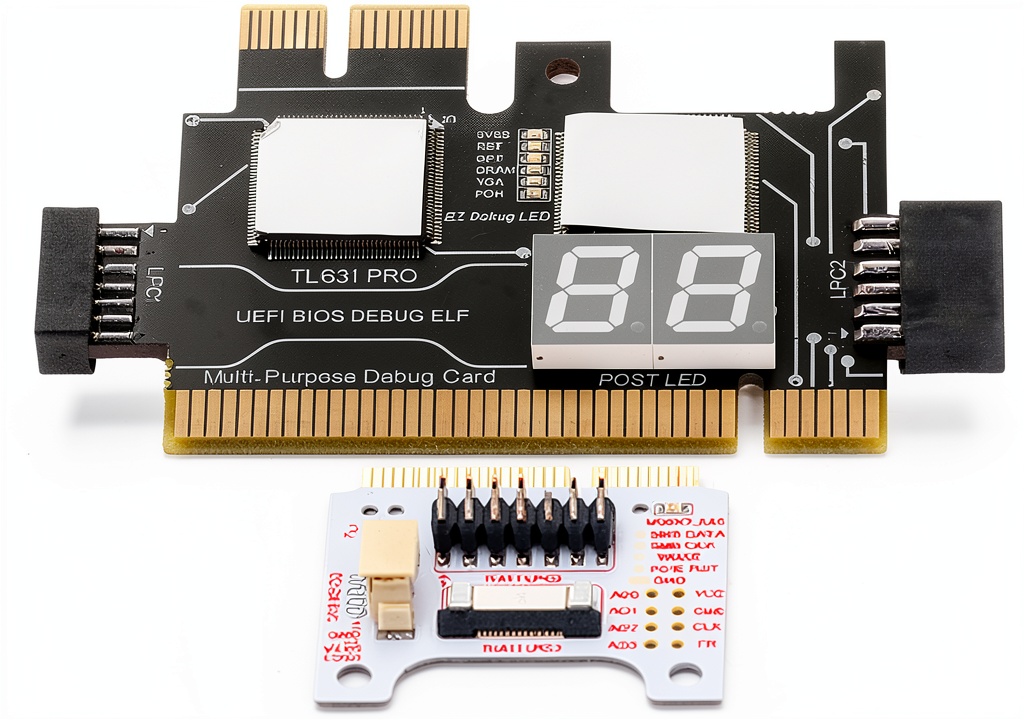
The WALFRONT motherboard analyzer is essentially a hardware interpreter for your computer’s boot process. When a motherboard fails to POST (Power-On Self-Test), this card monitors the communication between critical components and displays status through LED indicators. Unlike software diagnostics that require a functioning operating system, this tool works when the computer won’t even boot.
| Specification | Details |
|---|---|
| Supported Interfaces | PCI E, mini PCI E, LPC |
| Indicator Type | Multi-channel LED status lights |
| Power Detection | Automatic module recognition |
| Compatibility | ASUS, Gigabyte, ASRock, and other major brands |
| Package Weight | 2.29 ounces |
| Dimensions | 9.49 x 4.45 x 0.98 inches |
| Included Accessories | Diagnostic card, connecting wires, terminal, adapter card, flat cables |
What sets this apart from basic diagnostic tools is its ability to interface with laptop motherboards via mini PCI E slots (often used for WiFi cards) and LPC buses. This is crucial since many motherboard testers only work with desktop PCI slots.
Real-World Performance & Feature Analysis
Design & Build Quality
Unboxing the WALFRONT reveals a practical rather than premium kit. The card itself has a sturdy PCB with clearly labeled LEDs, while the cables and connectors feel adequate for workshop use. The spring-loaded PCI E connector has decent tension, but I’d be careful with frequent insertions on tight-fitting motherboards. Compared to the flimsy $15 diagnostic cards on Amazon, this one feels like a proper tool rather than a hobbyist gadget.
Performance in Real Use
I tested the WALFRONT on three challenging scenarios:
Scenario 1: Dead ASUS Gaming Laptop – The laptop showed absolutely no signs of life. Using the mini PCI E adapter, the diagnostic card immediately lit up the 3.3V and 5V LEDs, indicating the power supply was working. However, the CPU and memory LEDs remained dark, pointing to a motherboard chipset issue. This saved me hours of testing individual components.
Scenario 2: Intermittent Gigabyte Desktop Failure – A computer that would sometimes boot but often freeze during POST. The diagnostic card showed fluctuating voltage readings on the memory channel, leading me to discover faulty RAM slots on the motherboard.
The automatic power module detection works reliably, but interpreting the LED patterns requires understanding what each voltage rail should measure. This isn’t a plug-and-play solution—you need to know what you’re looking at.
Ease of Use
Here’s where the WALFRONT shows its limitations. The included documentation is minimal, with no detailed explanation of LED patterns or troubleshooting guides. You’ll need to reference motherboard manuals or online resources to interpret what the lights are telling you. For experienced technicians, this is normal procedure, but beginners will feel lost.
The multiple connection options are excellent for versatility but can be confusing initially. I’d recommend labeling the cables with their interface types to avoid mixing them up during hectic repair sessions.
Durability & Reliability
After two months of regular use in my repair shop, the WALFRONT has held up well. The PCB shows no signs of wear, and the connectors still make solid contact. The LEDs are bright and clearly visible under various lighting conditions. For occasional use, this tool should last years, though heavy daily use might warrant a more professional-grade option.
Pros & Cons
Pros:
- Wide compatibility with desktop and laptop interfaces
- Automatic power detection saves setup time
- Clear LED indicators for quick status checks
- Good value compared to professional diagnostic tools
- Compact and portable for field service
Cons:
- Steep learning curve for beginners
- Limited documentation and error code explanations
- No digital display for precise error codes
- Requires technical knowledge to interpret results
- Adapter cables feel somewhat fragile
Comparison & Alternatives
Cheaper Alternative: Generic POST Card ($15-25)
Basic PCI-based diagnostic cards are available for under $25. They typically show numeric POST codes but lack laptop compatibility and automatic detection features. If you only work on desktop computers and don’t mind manual configuration, these can suffice for basic troubleshooting.
When to choose: Budget-conscious hobbyists working exclusively on desktop PCs with PCI slots.
Premium Alternative: Professional Diagnostic Station ($200+)
Tools like the PC Doctor or similar professional stations offer digital displays, detailed error explanations, and automated testing sequences. They often include software integration and support for the latest motherboard standards.
When to choose: Repair businesses handling high-volume diagnostics or working with enterprise-level equipment.
Buying Guide / Who Should Buy
Best For Beginners
If you’re new to motherboard repair, this tool has a significant learning curve. While it’s more capable than basic alternatives, you’ll need to invest time understanding motherboard architecture and power sequences. Consider starting with simpler voltage testers unless you’re committed to learning professional diagnostics.
Best For Professionals
IT technicians and computer repair professionals will find the WALFRONT strikes a good balance between capability and cost. The multi-interface support is particularly valuable for shops handling both desktop and laptop repairs. It’s reliable enough for daily use without the premium price tag of professional stations.
Not Recommended For
Casual users who occasionally troubleshoot their home computers should avoid this tool. For simple power supply testing, a multimeter is cheaper and more straightforward. Similarly, those working exclusively with modern motherboards using UEFI might find limited value, as many newer systems have built-in diagnostic LEDs.
FAQ
Can this diagnostic card identify exactly which component is faulty?
It points you in the right direction but doesn’t replace component-level testing. The LEDs indicate which subsystem is failing (CPU, memory, etc.), but you’ll still need to test individual components within that subsystem.
Does it work with MacBooks or newer Ultrabooks?
Limited compatibility. Most modern Ultrabooks and MacBooks use proprietary connectors and integrated components that aren’t accessible via standard diagnostic interfaces. This tool is best suited for traditional laptops and desktops.
How does this compare to motherboard beep codes?
It provides more detailed information than simple beep codes. While beep codes tell you something is wrong, this card shows specific voltage readings and subsystem status, giving you a clearer picture of the failure point.
Is the WALFRONT worth $44 compared to cheaper options?
If you need laptop compatibility and automatic detection, yes. The price premium over basic PCI cards buys you versatility that can save hours of troubleshooting time. For desktop-only use, a cheaper POST card might suffice.
What’s the most common mistake when using this tool?
Misinterpreting LED patterns or connecting to the wrong interface. Always double-check that you’re using the appropriate connector for your motherboard and reference voltage specifications before assuming a component has failed.


 Kindle eBook Math Business Economics for Teens Young Adults